
How to install an Expert Advisor and setfiles in MT4, step by step

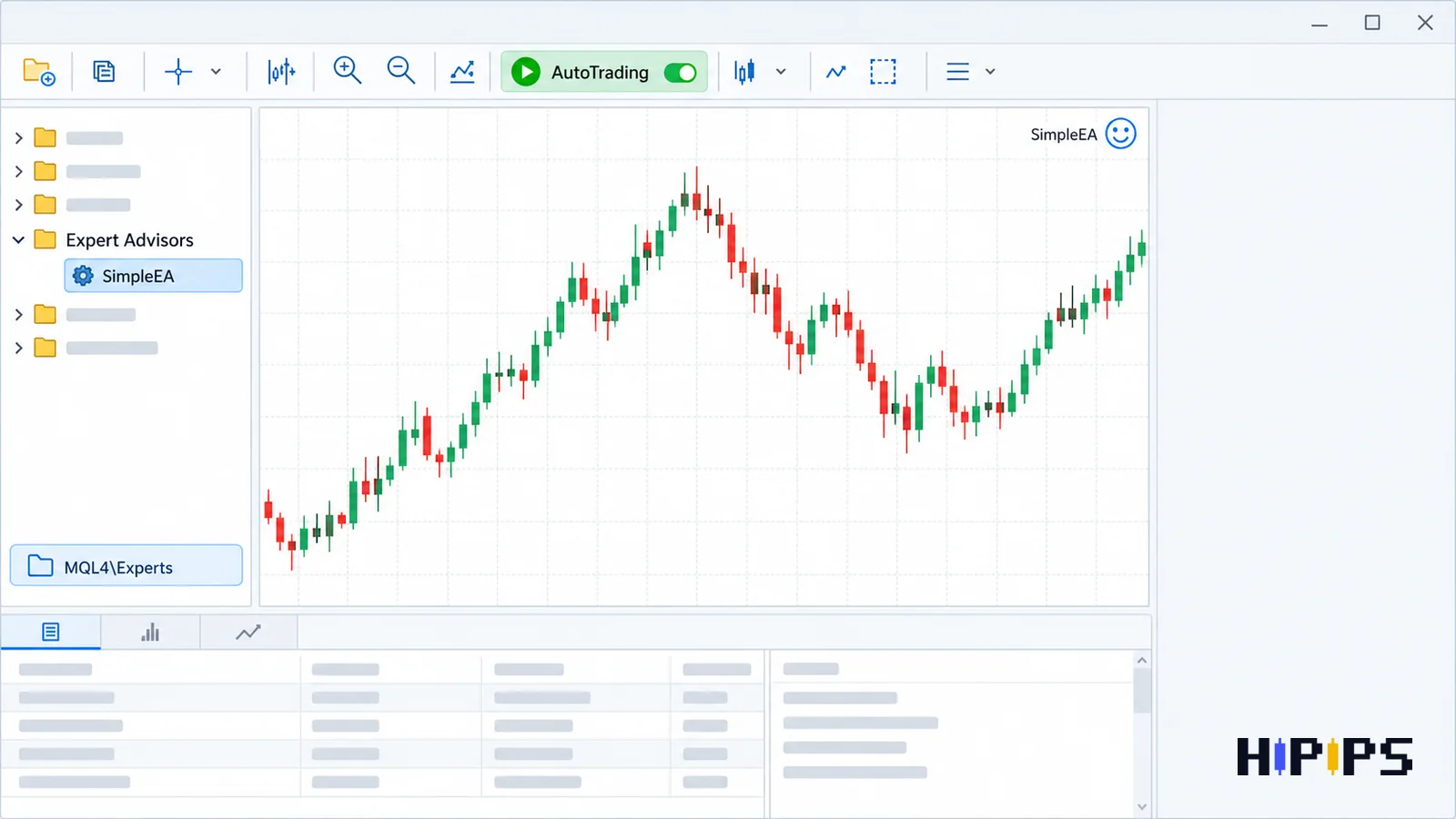
Installing an Expert Advisor in MT4 takes four actions: copy the .ex4 file into the MQL4\Experts folder, refresh the Navigator, attach the Expert Advisor to the right chart with live trading allowed, and load its setfile in the Inputs tab before turning on AutoTrading.
A setfile stores the input values of one Expert Advisor, so the .ex4 file and the setfile work as a pair. This guide lists the files in an MT4 package and their folders, gives the installation steps, shows how to load a setfile, explains how to confirm the Expert Advisor runs, and covers why an Expert Advisor does not appear in the Navigator. This guide is part of the HiPips path to choose, test and run an MT4 or MT5 Expert Advisor, which starts with what an Expert Advisor is.
What files does an MT4 Expert Advisor package contain?
An MT4 Expert Advisor package contains a compiled .ex4 file and often .set files, custom indicators and libraries, and each file type belongs in its own folder of the MT4 data folder.
MetaTrader 4 keeps Expert Advisors in MQL4\Experts, custom indicators in MQL4\Indicators, libraries in MQL4\Libraries, preset files in MQL4\Presets and the file sandbox of MQL4 programs in MQL4\Files, according to the MetaTrader 4 help on terminal start and data structure. The table below maps each package file to its folder.
| File in the package | What it is | MT4 folder |
|---|---|---|
| name.ex4 | Compiled Expert Advisor | MQL4\Experts |
| name.mq4 | Source code (only in source packages) | MQL4\Experts |
| name.set | Setfile with input values | MQL4\Presets |
| indicator.ex4 | Custom indicator the Expert Advisor reads | MQL4\Indicators |
| library.ex4 or library.dll | Library the Expert Advisor imports | MQL4\Libraries |
| data files (.csv, .txt) | Files the Expert Advisor reads or writes | MQL4\Files |
Keep the original download archive unchanged as a backup, so a clean copy of every file stays available after edits and updates.
Where is the MT4 data folder?
The MT4 data folder is the user folder where the platform keeps Expert Advisors, indicators, setfiles and logs, and File > Open Data Folder opens it from inside the platform.
The same MetaTrader 4 help page places the data folder under C:\Users\<account>\AppData\Roaming\MetaQuotes\Terminal\<16-character id> on Windows with User Account Control on, apart from the program folder in Program Files. Each installed copy of MT4 has its own data folder, and the platform writes the path in its journal at every start. A file pasted into Program Files\…\MQL4\Experts does not reach a platform whose data folder is in AppData, which is the most common reason an Expert Advisor stays invisible after copying.
How to install an Expert Advisor in MT4 step by step
Installing an Expert Advisor in MT4 takes eight steps, from opening the data folder to reading the first log messages. The eight steps are listed below.
- Open MT4 and choose File > Open Data Folder.
- Open MQL4\Experts and paste the .ex4 file; paste indicators into MQL4\Indicators and libraries into MQL4\Libraries if the package includes them.
- Return to MT4, right-click Expert Advisors in the Navigator and choose Refresh, or restart the platform.
- Open a chart of the symbol and timeframe named in the Expert Advisor’s manual, including the broker’s suffix (EURUSD.pro, XAUUSDm or GOLD).
- Double-click the Expert Advisor in the Navigator or drag it onto the chart to open its properties window.
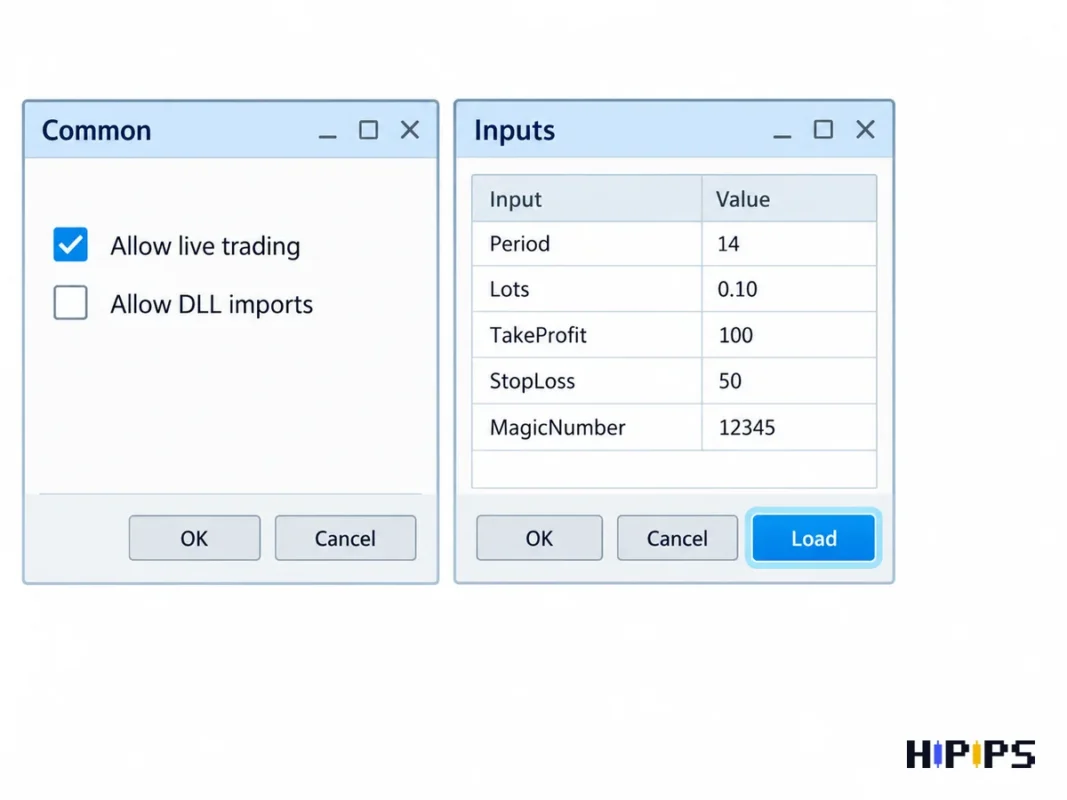
- In the Common tab, tick Allow live trading, and tick Allow DLL imports only when the manual requires it.
- In the Inputs tab, press Load, choose the setfile, then press OK.
- Turn on the AutoTrading button on the toolbar and check the smiley next to the Expert Advisor’s name in the upper right corner of the chart.
MetaTrader 4 attaches an Expert Advisor by a double-click or “Attach to a chart” in the Navigator, or by a drag onto any chart, and opens the Common and Inputs tabs at that moment, according to the MetaTrader 4 help on launching Expert Advisors. The same help page states that Allow live trading in the Common tab does not make the Expert Advisor trade when automated trading is off in the platform settings.
Which MT4 settings allow an Expert Advisor to trade?
An Expert Advisor trades in MT4 only when three switches are on: Allow Auto Trading in Tools > Options > Expert Advisors, Allow live trading in the Common tab of the Expert Advisor, and the AutoTrading button on the toolbar.
The platform switch controls every Expert Advisor at once: with it off, no Expert Advisor trades even when its own settings allow live trading, according to the MetaTrader 4 help on Expert Advisor settings. The same tab holds three protective options that turn automated trading off when the account, the profile, or the chart symbol or period changes; a trader who switches from demo to live finds AutoTrading off after the switch when the first option is ticked. The options in Tools > Options apply as defaults to Expert Advisors attached afterwards and do not change Expert Advisors already running on charts.
Allow DLL imports lets an Expert Advisor call Windows libraries without limits, and the MT4 settings label it potentially dangerous and recommend it only for trusted programs. The guide to no-DLL Expert Advisors explains when a DLL is needed and how to check one.
How to load a setfile in MT4
Loading a setfile in MT4 takes four steps and works the same whether the Expert Advisor is new on the chart or already running. The four steps are listed below.
- Copy the .set file into MQL4\Presets through File > Open Data Folder, so it appears first in the Load dialog.
- Open the Expert Advisor’s properties: double-click it on a new chart, or press F7 on a chart where it already runs.
- In the Inputs tab, press Load, select the .set file and confirm that the input values change.
- Press OK; MT4 re-initializes the Expert Advisor with the new inputs.
The MetaTrader 4 help on launching Expert Advisors describes the Inputs tab as the place for the extern variables of the Expert Advisor, with Load, Save and Reset buttons that load a saved set, save the current one and return to the defaults. A setfile matches the chart it was saved for: the same symbol, timeframe, account size and broker server time. Name edited copies with the symbol, timeframe, risk level and date (such as XAUUSD-M15-low-2026-09.set) and keep the original untouched. Gold setfiles need extra care with lot size and spread limits, and the guide to XAUUSD Expert Advisor setfiles explains the inputs that matter most on gold.
How to check that the Expert Advisor runs in MT4
An Expert Advisor runs in MT4 when its name and a smiley show in the upper right corner of the chart, the Experts tab shows a load message without errors, and the AutoTrading button is on.
The MetaTrader 4 help describes the smiley as the sign of an attached Expert Advisor with live trading allowed; any other icon means live trading is off in its own settings or for the whole platform. MT4 starts the Expert Advisor at the next incoming tick, so a closed market shows the smiley without any activity. The Experts tab records messages from the Expert Advisor, and the Journal tab records platform events such as a failed login or a disabled trade permission. An Expert Advisor with a smiley and no trades during market hours has a filter, broker or permission cause, and the checklist for an Expert Advisor not trading walks through each one.
Why does an Expert Advisor not appear in the MT4 Navigator?
An Expert Advisor does not appear in the MT4 Navigator when the file sits outside the data folder the platform reads, when the file type does not belong to MT4, or when the Navigator has not refreshed. The common causes are listed below.
- Wrong folder: the file sits in the program folder instead of the data folder opened by File > Open Data Folder.
- Wrong file type: an .ex5 file belongs to MT5 and never shows in MT4.
- Archive not extracted: a .zip or .rar file in MQL4\Experts is not an Expert Advisor until extracted.
- No refresh: the Navigator lists new files after Refresh or a restart.
- Wrong subfolder: an indicator file placed in MQL4\Experts appears under Indicators only when moved to MQL4\Indicators.
Can one MT4 chart run two Expert Advisors?
One MT4 chart runs one Expert Advisor, and the MetaTrader 4 help on launching Expert Advisors states that attaching a second one removes the first. Open a second chart of the same symbol to run a second Expert Advisor, and give each one a different magic number input when the inputs include one. Several trading accounts at once need several MT4 installations in different folders, because the MT4 help prohibits two copies of the platform running from the same folder.
Can you install an Expert Advisor in MT4 on a Mac or phone?
An Expert Advisor in MT4 runs on a Mac through the official MetaTrader 4 installer, which downloads and configures Wine, needs macOS Big Sur (11) or later and supports Apple processors from M1 onward, according to the MetaTrader 4 help on Mac installation. The MT4 apps for Android and iPhone do not run Expert Advisors, so a phone works as a monitor while the Expert Advisor runs on a computer or a forex VPS for Expert Advisors.
How is installing in MT5 different?
Installing in MT5 follows the same steps with .ex5 files, MQL5 folders and the Algo Trading button, and MT4 files do not run in MT5; the guide to install an Expert Advisor and setfiles in MT5 covers it, and MT4 vs MT5 Expert Advisors compares the platforms.
Test the setfile in the Strategy Tester and on a demo account before live use; the guide on how to backtest an Expert Advisor in MT4 lists the tester settings, and Expert Advisor risk settings explains how to size the lot inputs for an account. Compare MT4 Expert Advisors by the setfiles they include and the symbols they support.