
Expert Advisor not trading in MT4 or MT5: 17 checks before you replace it

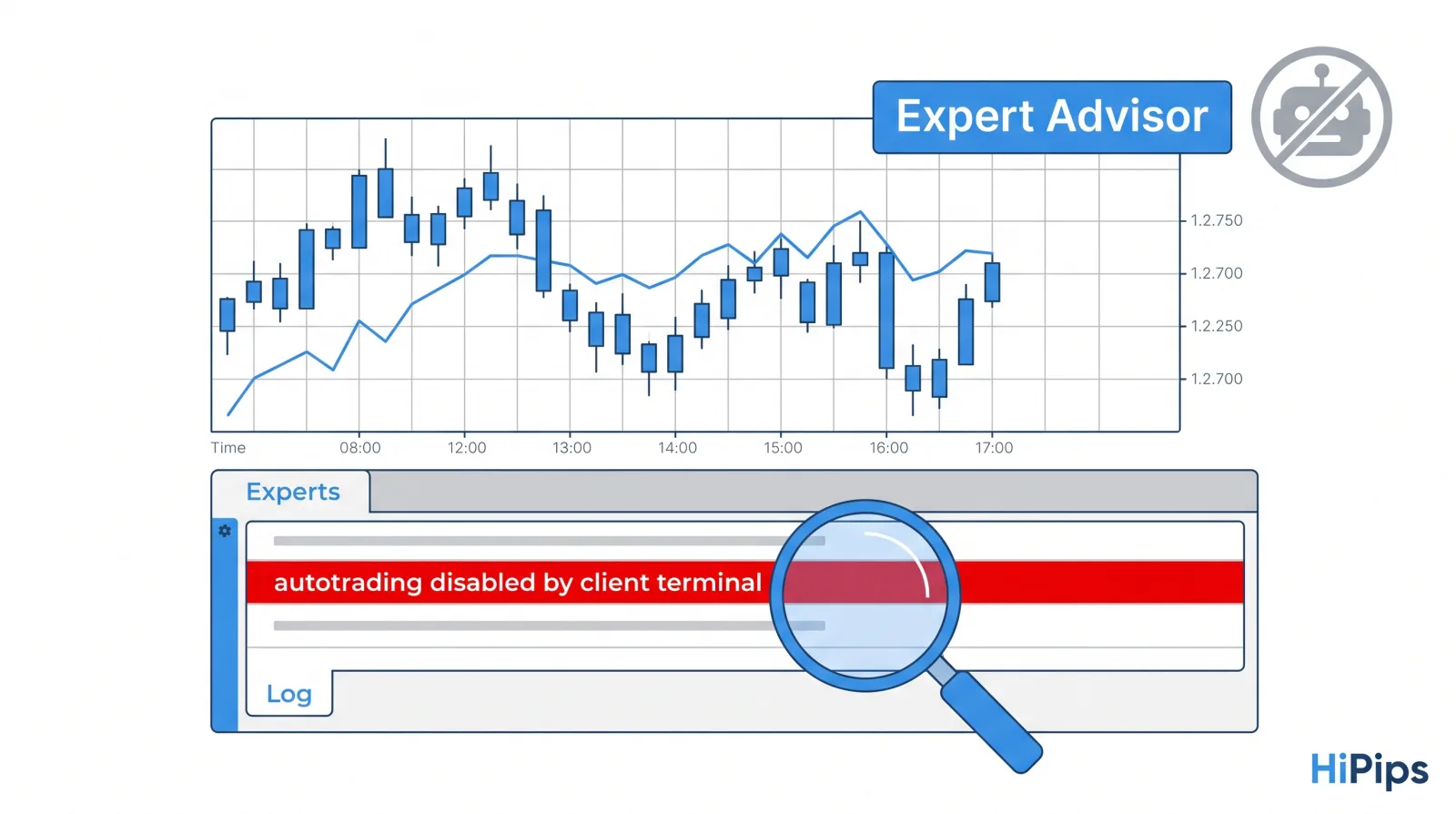
An Expert Advisor that is not trading in MT4 or MT5 is blocked by one of four causes: automated trading is disabled, the chart or setfile does not match the Expert Advisor, the broker rejects the order, or the entry conditions are not met yet.
The Experts and Journal tabs name the cause whenever the Expert Advisor tries to send an order, so read them before changing any input. This guide shows how to confirm that an Expert Advisor is allowed to trade, lists 17 checks in the order that finds the cause fastest, explains the log messages of MT4 and MT5, and separates a broken setup from an Expert Advisor that waits on purpose.
How do you know an Expert Advisor is allowed to trade?
An Expert Advisor is allowed to trade when three switches are on: the platform-wide AutoTrading (Algo Trading) button, the Expert Advisor’s own permission in its Common tab, and the trading permission of the account itself.
The chart shows the result of the first two switches. In MT4, the Expert Advisor’s name and a smiley appear in the upper right corner of the chart when it is attached with trading allowed, and the Allow live trading option can still be overridden by the terminal’s general settings, according to the MetaTrader 4 help on launching Expert Advisors. In MT5, the icon next to the Expert Advisor’s name changes to a disabled state when trading is not allowed, and turning off the toolbar button disables automated trading for all Expert Advisors even when each one allows it individually, according to the MetaTrader 5 help on Expert Advisors.
| Trading switch | MT4 location | MT5 location | Effect when off |
|---|---|---|---|
| Platform button | AutoTrading on the toolbar | Algo Trading on the toolbar | No Expert Advisor on the terminal can trade |
| Expert Advisor permission | Allow live trading in the Common tab | Allow Algo Trading in the Common tab | This Expert Advisor runs but cannot trade |
| Account permission | Login with the master password | Login with the master password | Investor login blocks all trading |
17 checks when an Expert Advisor is not trading
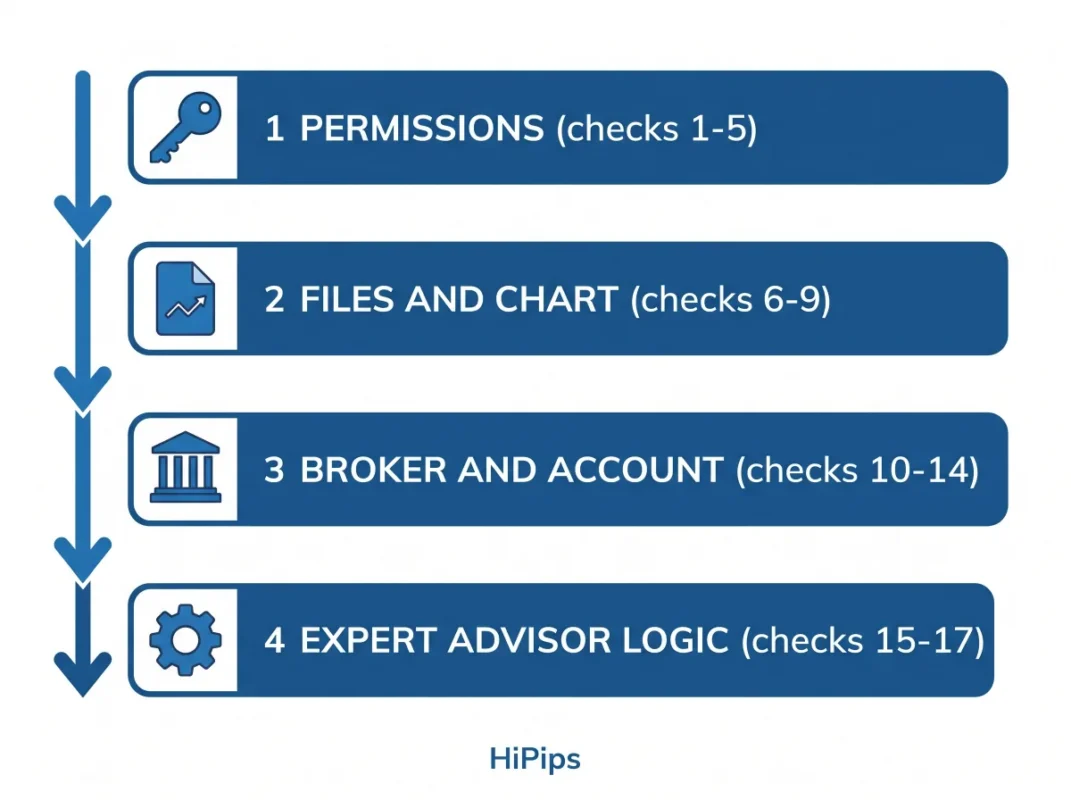
The 17 checks for an Expert Advisor that is not trading fall into four groups: permissions, files and chart, broker and account, and the Expert Advisor’s own logic. Work through them in order and change one thing at a time, so the fix that works is the one you can name.
Permission checks
The five permission checks are listed below.
- AutoTrading or Algo Trading button: the toolbar button is switched on in the terminal that runs the Expert Advisor.
- Expert Advisor permission: Allow live trading (MT4) or Allow Algo Trading (MT5) is ticked in the Common tab of the Expert Advisor’s properties.
- Account password: the terminal is logged in with the master password. Investor authorization lets a trader see the account and work with Expert Advisors, but not trade, and automated trading is not allowed either, according to the MetaTrader 4 help on authorization.
- Account switch protection: the option that disables automated trading when the account changes has not switched trading off after a new login, which the MetaTrader 4 Expert Advisors settings help describes as a protective mechanism.
- DLL imports and WebRequest: enabled only if the Expert Advisor’s manual requires them; an Expert Advisor that needs a DLL stops when DLL imports are off, and the guide to no-DLL Expert Advisors explains how to check which kind you run.
File, chart and setfile checks
The four file and chart checks are listed below.
- Platform file: an .ex4 file runs only in MT4 and an .ex5 file runs only in MT5; a file for the wrong platform does not appear in the Navigator.
- Symbol name: the chart symbol matches the symbol the Expert Advisor expects, including the broker suffix (XAUUSD, XAUUSDm, XAUUSD.pro or GOLD).
- Timeframe: the chart timeframe matches the one in the Expert Advisor’s manual, because an M15 strategy on an H1 chart waits for signals that arrive four times less often.
- Setfile: the intended setfile is loaded in the Inputs tab, not the default inputs of the file; the guide on how to install an Expert Advisor and setfiles in MT5 shows where to load it.
Broker and account checks
The five broker and account checks are listed below.
- Market hours: the symbol is open; an order sent while the market is closed returns error 132 in MT4 or 10018 in MT5.
- Spread: the current spread is below the Expert Advisor’s maximum-spread input; during rollover and news, a scalping Expert Advisor with a spread filter stops opening trades on purpose.
- Stops level and freeze level: the stop loss and take profit sit farther from the price than the broker’s stops level, and the order is not inside the freeze level, where it cannot be modified, cancelled or closed, according to the MQL4 symbol property reference.
- Lot size: the Expert Advisor’s lot is at least the symbol’s minimum lot and a multiple of its lot step.
- Free margin: the account has enough free margin for the lot; an Expert Advisor that sizes positions for a larger balance is rejected with a not-enough-money error.
Expert Advisor logic checks
The three logic checks are listed below.
- Trade limits: the Expert Advisor has not reached its own maximum open trades, daily loss limit or equity stop.
- Time filters: the news filter, session filter or Friday filter is not pausing entries at this hour.
- Entry conditions: the strategy’s signal has not formed yet; run the same setfile in the Strategy Tester’s visual mode on recent data to see when the Expert Advisor would enter.
Checks 12 to 14 involve the broker’s symbol specification, which shows the stops level, minimum lot and lot step for every symbol in Market Watch (right-click the symbol, then Specification).
How to read the Experts and Journal tabs
The Experts tab records messages from the Expert Advisor itself, including failed orders and their error codes, and the Journal tab records platform events such as connection, login and order execution.
MT4 and MT5 use different code numbers for the same rejection. The table below matches common rejection messages across both platforms, with MT4 names from the MQL4 error code list and MT5 names from the MQL5 trade server return codes.
| Cause | MT4 code and name | MT5 code and name | Fix |
|---|---|---|---|
| Automated trading off in the terminal | 4109 Trade is not allowed | 10027 Autotrading disabled by client terminal | Turn on the toolbar button and the Expert Advisor permission |
| Automated trading off on the server | 133 Trade is disabled | 10026 Autotrading disabled by server | Ask the broker whether the account type allows Expert Advisors |
| Stops too close to the price | 130 Invalid stops | 10016 Invalid stops in the request | Widen stops beyond the stops level |
| Lot below minimum or off the step | 131 Invalid trade volume | 10014 Invalid volume in the request | Round the lot to the minimum lot and lot step |
| Margin too small | 134 Not enough money | 10019 Not enough money to complete the request | Lower the lot or the number of positions |
| Market closed | 132 Market is closed | 10018 Market is closed | Wait for the session or remove the symbol |
| Position or order limit | none | 10040 or 10033 limit reached | Close positions or ask the broker about limits |
Stops levels on XAUUSD differ between brokers, so error 130 appears when a setfile built for one broker runs on another, and the guide to error 130 invalid stops lists the fixes. A log with no error at all means the Expert Advisor never tried to trade, which points to checks 15 to 17.
When no trade is the correct behavior
No trade is the correct behavior when the Expert Advisor’s filters block entries that fall outside its tested conditions: wide spread, news, closed sessions, a reached daily loss limit or an equity stop.
Filters protect the account from trades the strategy was not built for. A spread filter keeps a scalping Expert Advisor out of rollover hours, a news filter pauses entries around high-impact releases, and a daily loss limit stops trading after a set drawdown. The settings behind these limits are explained in Expert Advisor risk settings, and the timing rules of news pauses are covered in the guide to the news filter for MT5 Expert Advisors. Loosening a filter to force trades changes the strategy that was tested.
Why does an Expert Advisor trade on demo but not on a live account?
An Expert Advisor that trades on demo but not on a live account meets different conditions on the live server: another symbol suffix, a wider spread, a different minimum lot, a live-only restriction on automated trading, or an investor-password login.
Demo and live accounts of the same broker run on separate trade servers, and their symbol lists and specifications can differ. Compare the Market Watch symbol names and the Specification window of both accounts, then check the live Journal for a server-side rejection such as 10026 in MT5. The same comparison explains an Expert Advisor that trades in the Strategy Tester but not on a chart: the tester simulates orders on history, so a tester trade proves the entry logic and says nothing about account permissions or live spread. The guide on how to backtest an MT5 Expert Advisor explains which tester settings match live conditions. An Expert Advisor that trades at home but stops on a server points to a login, file or permission difference on the server, and the setup section of forex VPS for Expert Advisors lists what to copy across.
Which brokers allow Expert Advisors?
A broker allows Expert Advisors when its MT4 or MT5 server permits automated trading on the account type, and a server-side block shows as 10026 Autotrading disabled by server in MT5 or as trade disabled in MT4. The broker’s account terms state whether Expert Advisors are allowed, and some account types and funded accounts add their own rules on scalping, news trading and holding times. Read the broker’s account terms, and for funded accounts check the prop firm Expert Advisor rules before running a strategy there.
Should you replace an Expert Advisor that does not trade?
An Expert Advisor that does not trade needs replacing only after all 17 checks pass and it still conflicts with the account: a spread it cannot tolerate, a minimum balance above the account size, or a platform the broker does not offer. A platform mismatch is the simplest case, and MT4 vs MT5 Expert Advisors explains the differences. When a replacement is needed, compare MT4 and MT5 Expert Advisors by platform, symbol, timeframe and broker requirements before testing one on demo.