
How to backtest an MT5 Expert Advisor in the Strategy Tester

Backtesting an MT5 Expert Advisor means running it on historical prices in the MetaTrader 5 Strategy Tester with the settings you plan to trade, then reading the report for profit, drawdown and consistency across periods.
A backtest filters out Expert Advisors whose rules fail on history; it cannot promise how they will trade next month. This guide covers the tester settings step by step, the modelling modes, where the history comes from, how to read the report, how to spot overfitting, and how visual mode shows each trade. This guide is part of the HiPips path to choose, test and run an MT4 or MT5 Expert Advisor, which starts with what an Expert Advisor is.
What is the MT5 Strategy Tester?
The MT5 Strategy Tester is the backtesting and optimization tool built into MetaTrader 5 that runs an Expert Advisor on historical data and reports every simulated trade.
The tester is multi-currency and multi-threaded, so it tests strategies that trade several symbols and uses all available computer resources, according to the MetaTrader 5 help on strategy testing. It runs on the desktop platform for Windows and on the MetaTrader 5 installer for Mac; the MT5 apps for Android and iPhone have no Strategy Tester. The Expert Advisor must be installed in the platform first, and the guide to install an Expert Advisor and setfiles in MT5 covers that step.
How to set up an MT5 backtest step by step
Setting up an MT5 backtest takes nine settings, from the Expert Advisor and symbol to the modelling mode and the setfile, and each one should match how you plan to trade.
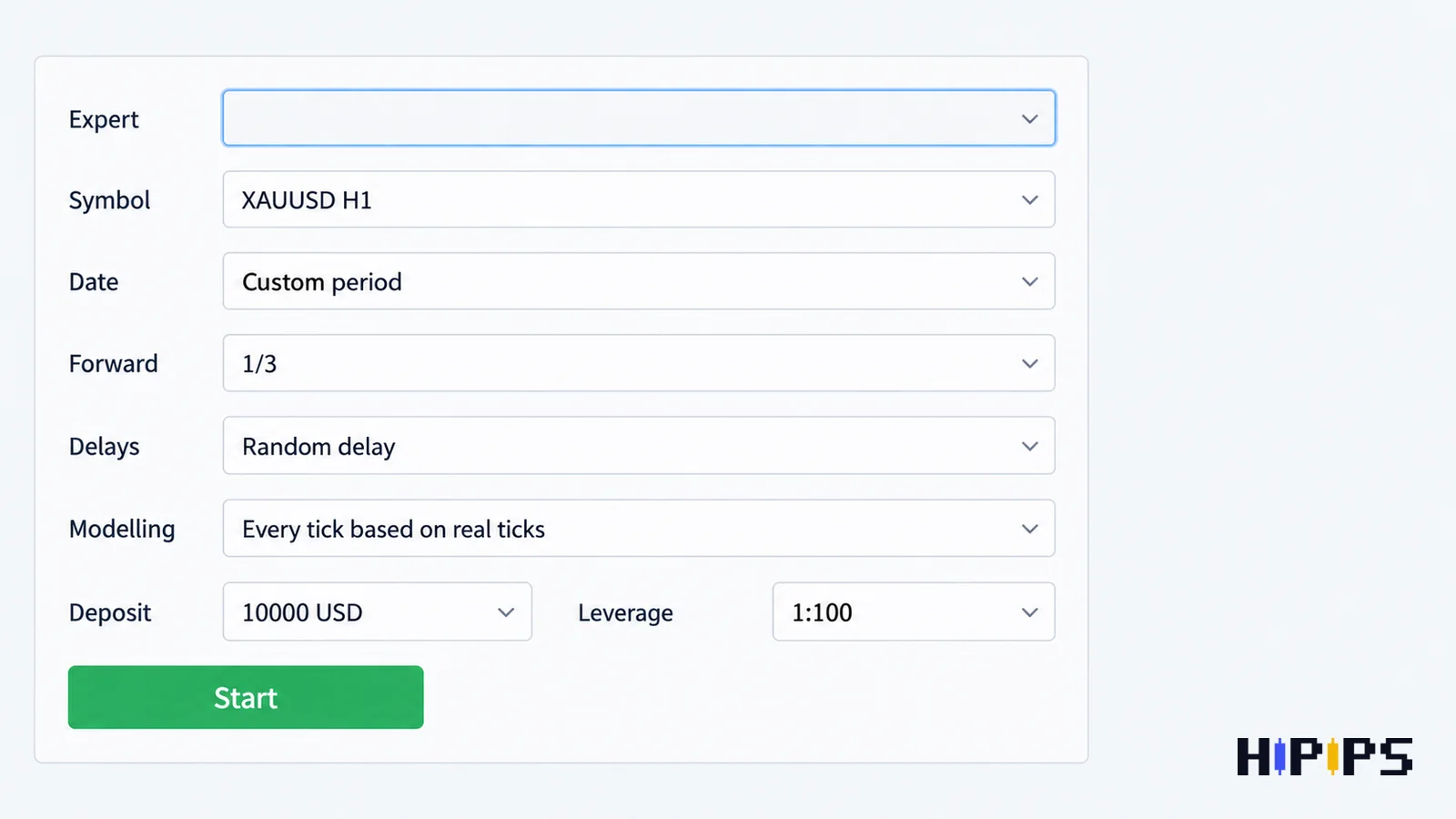
The same help page lists the testing parameters as the Expert Advisor, symbol and period, date range, forward period, execution delays, tick generation mode, initial deposit, currency, leverage, optimization mode and visualization. The setup steps are listed below.
- Open View > Strategy Tester and select the Expert Advisor.
- Choose the symbol with your broker’s name and suffix, and the timeframe from the Expert Advisor’s manual.
- Set a custom date range that covers trends, ranges and high-volatility periods.
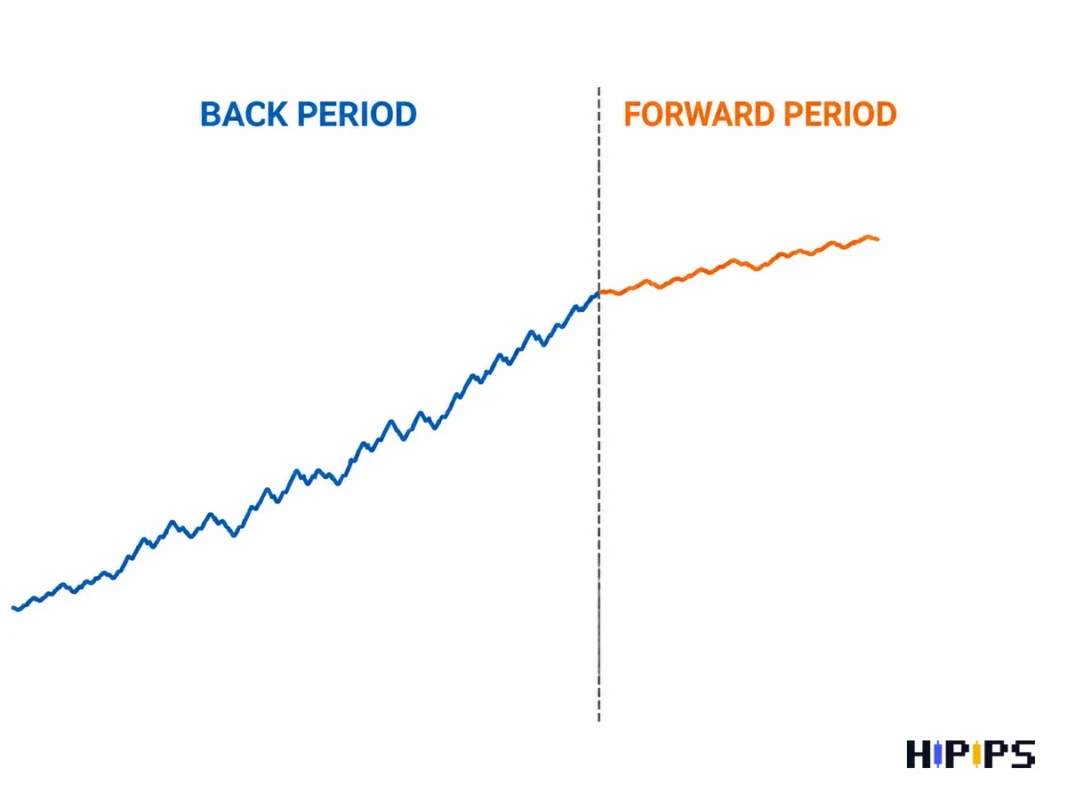
- Set Forward to 1/3, so the last third of the range checks the settings on data the back period did not use.
- Set Delays to Random delay, which adds execution lag to each order.
- Set Modelling to “Every tick based on real ticks”.
- Enter the deposit, currency and leverage of the account you plan to trade.
- Open the Inputs tab and load the setfile you plan to use.
- Press Start and wait for the Backtest and Graph tabs to fill.
The tester downloads extra data before the start date, at least 100 bars, so indicators have values from the first bar of the test.
Which modelling mode should you use?
The modelling mode for an MT5 backtest should be “Every tick based on real ticks” for any Expert Advisor that trades inside a bar, and a faster mode only for a first screening or a strategy that acts on bar opens.
MetaTrader 5 offers five modes, described in the MetaTrader 5 help on strategy testing. The table below compares them.
| Modelling mode | How it builds prices | Use it for |
|---|---|---|
| Every tick based on real ticks | Real ticks accumulated by the broker, no simulation | Final tests, scalping, gold, tight stops |
| Every tick | All ticks simulated from minute bars | Strategies when real tick history is missing |
| 1 minute OHLC | Four prices of each minute bar | Fast screening of slower strategies |
| Open prices only | Bar open prices of the tested timeframe | Expert Advisors that trade only at bar open |
| Math calculations | No price history, no ticks | Mathematical models, not trading tests |
Real ticks carry the broker’s changing spread into the test, so the costs match that broker. A scalping or XAUUSD Expert Advisor tested on open prices only shows fills that never happen on a live chart.
Where does the MT5 tester get its history?
The MT5 tester downloads M1 bars and tick data for the tested symbol from your broker’s trade server, and uses the M1 bars to verify and correct the tick history, according to the MetaTrader 5 help on how the tester downloads historical data.
A backtest is only as good as the broker’s history. Two brokers give two different results for the same Expert Advisor, because spreads, quotes and history depth differ, so test on the broker you plan to use. When the broker’s history is too short, the tester shifts the start date forward and writes the new date in the tester journal, so check the journal before trusting the period in the report.
How to read an MT5 backtest report
An MT5 backtest report is read in three steps: whether the Expert Advisor made money, how much drawdown it needed, and how its losses clustered.
The figures to read first are listed below.
- Profit factor: gross profit divided by gross loss; below 1.0 the test lost money.
- Equity drawdown relative: the deepest fall of equity in percent, with open positions counted.
- Recovery factor: profit divided by maximum drawdown.
- Total trades: the sample size behind every other figure.
- Maximal consecutive losses: the longest losing streak your risk per trade must survive.
Read equity drawdown before balance drawdown, because a grid or recovery Expert Advisor hides its open losses in equity. The full metric table with what each figure tells you is in the guide on how to choose an MT5 Expert Advisor, and the link between a losing streak, risk per trade and drawdown in Expert Advisor risk settings.
How to check an MT5 backtest for overfitting
An MT5 backtest is overfitted when its settings fit one stretch of history so closely that the result breaks on any other stretch, and the forward period is the first check for it.
The forward testing option helps avoid over-optimization, or parameter fitting, by checking the selected parameters on the last part of the range, according to the MetaTrader 5 Strategy Tester page. The overfitting checks are listed below.
- Compare the back period and the forward period: profit factor and drawdown should stay in the same range.
- Shift the date range and run again; a result that exists only on one range is fitted to that range.
- Change one input slightly, such as a stop distance; a result that collapses after a small change depends on that exact value.
- Count the inputs the vendor optimized; many tuned inputs on a short history fit noise.
Optimization without these checks produces the smoothest curve, not settings that hold on new data; the guide to MT5 Expert Advisor optimization explains how to optimize and validate.
A strong backtest is a weak predictor on its own: in a study of 888 trading algorithms with at least six months of live results, backtest Sharpe ratios explained almost none of the out-of-sample performance (R² below 0.025). The finding is one of the backtest-versus-live figures on the forex robot statistics page.
How to watch an Expert Advisor’s trades in visual mode
Visual mode replays the backtest on a chart, showing each trade of the Expert Advisor with buy and sell marks, open positions and pending orders, according to the MetaTrader 5 help on testing visualization.
Use visual mode after the first full test, on a short period with typical trades. It shows whether entries match the strategy the vendor describes, whether stops sit where the setfile says, and whether a grid or martingale sequence opens orders that the report alone does not reveal. Visual mode runs in single tests, not during optimization.
What to do after the backtest
A backtest that passes these checks moves to a demo forward test on the same broker, then to a small live account with the equity stop active.
The demo test shows live spread, slippage and execution that history cannot reproduce. Compare its trade frequency and drawdown with the backtest week by week, and compare both with the vendor’s live record if one exists; the guide on how to verify a forex robot before buying covers the live-record checks.
Can you backtest on MT5 mobile?
You cannot backtest on MT5 mobile, because the MetaTrader 5 apps for Android and iPhone do not include the Strategy Tester. Run backtests on the desktop platform on Windows, on a Mac through the MetaTrader 5 installer, or on a Windows VPS.
How long should an MT5 backtest period be?
An MT5 backtest period should be long enough to include trends, ranges and high-volatility markets, with enough trades for the statistics to mean something. A scalping Expert Advisor reaches a large trade count in months, while a swing Expert Advisor needs years of history to show the same number of trades. Gold and other volatile symbols need periods with major news events inside the range; the guide on how to choose an XAUUSD Expert Advisor explains why gold tests need tighter checks.
How is backtesting in MT4 different?
Backtesting in MT4 tests one symbol per run and has fewer modelling options than MT5, so multi-symbol Expert Advisors and real-tick tests need MT5. The MT4 steps are in the guide on how to backtest an Expert Advisor in MT4, and the platform differences in MT4 vs MT5 Expert Advisors. Compare MT5 Expert Advisors by the tester settings their vendors publish before testing one yourself.