
How to install an Expert Advisor and setfiles in MT5, step by step

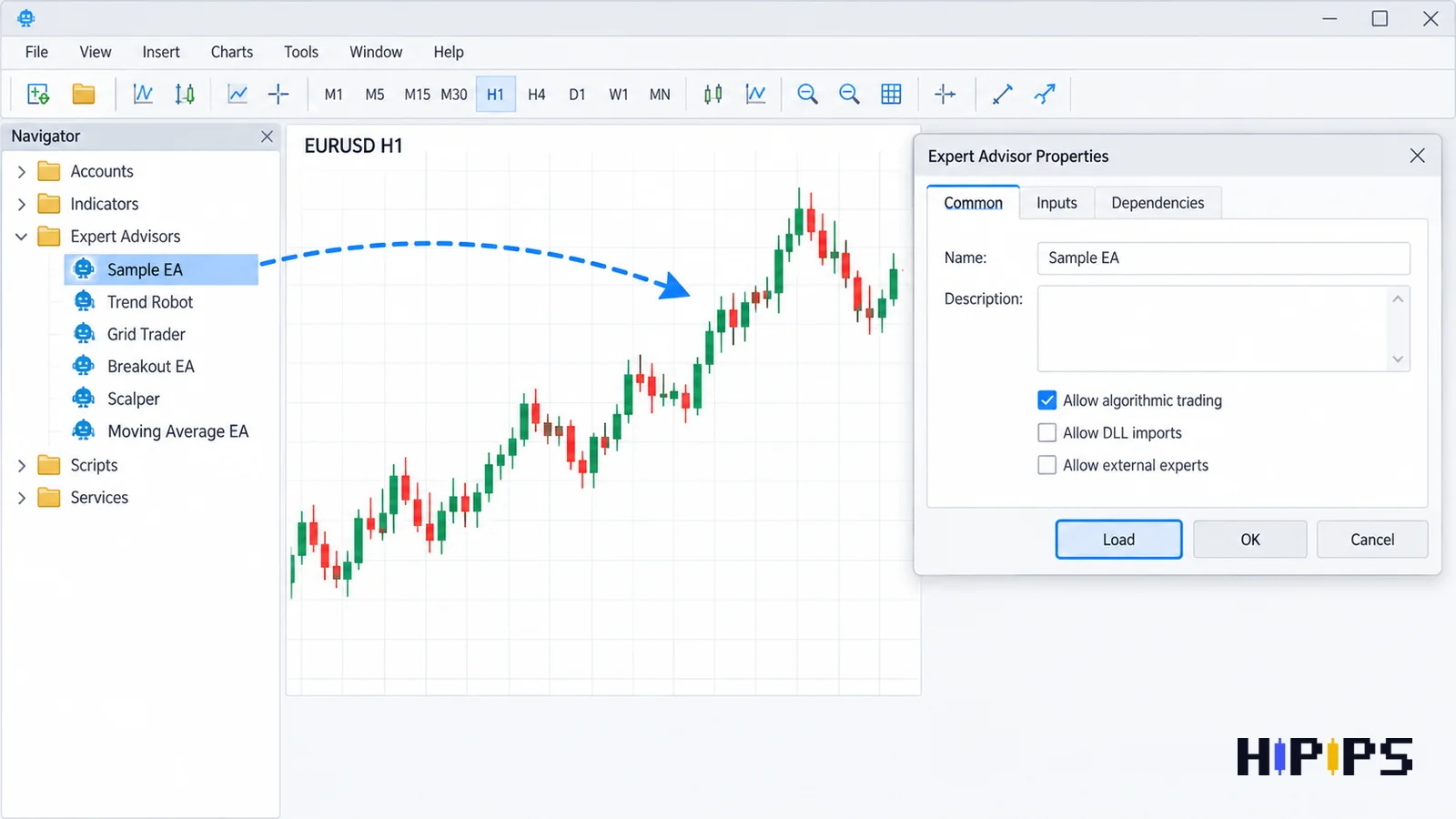
Installing an Expert Advisor in MT5 takes four actions: copy the .ex5 file into the MQL5\Experts folder, refresh the Navigator, attach the Expert Advisor to the right chart, and load its setfile in the Inputs tab before enabling Algo Trading.
A setfile is the saved input configuration of one Expert Advisor, so the file and the setfile work as a pair. This guide lists the files in an MT5 Expert Advisor package, gives the installation steps, explains what a setfile is and how to load it, shows which chart settings must match the setfile, and ends with the checks that confirm the Expert Advisor runs correctly. This guide is part of the HiPips path to choose, test and run an MT4 or MT5 Expert Advisor, which starts with what an Expert Advisor is.
What files does an MT5 Expert Advisor package contain?
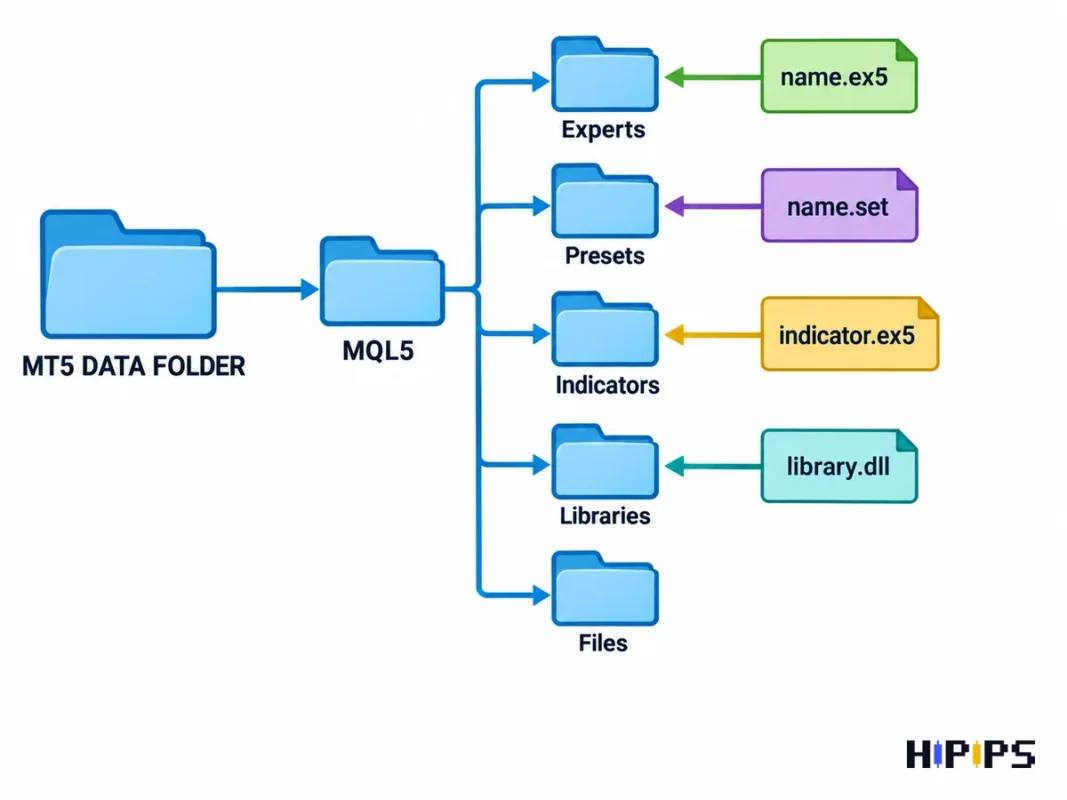
An MT5 Expert Advisor package contains a compiled .ex5 file and often one or more .set files, custom indicators and libraries, and each file type belongs in its own folder of the MT5 data folder.
MetaTrader 5 stores Expert Advisors, their compiled .ex5 files and .mq5 source code in MQL5\Experts, custom indicators in MQL5\Indicators, input parameter sets in MQL5\Presets, files used by Expert Advisors in MQL5\Files and libraries in MQL5\Libraries, according to the MetaTrader 5 help on files and folders. The table below maps each package file to its folder.
| File in the package | What it is | MT5 folder |
|---|---|---|
| name.ex5 | Compiled Expert Advisor | MQL5\Experts |
| name.mq5 | Source code (only in source packages) | MQL5\Experts |
| name.set | Setfile with input values | MQL5\Presets |
| indicator.ex5 | Custom indicator the Expert Advisor reads | MQL5\Indicators |
| library.ex5 or library.dll | Library the Expert Advisor imports | MQL5\Libraries |
Keep the original download archive unchanged as a backup, so a clean copy of every file stays available after edits and updates.
How to install an Expert Advisor in MT5 step by step
Installing an Expert Advisor in MT5 takes eight steps, from opening the data folder to reading the first log messages. The eight steps are listed below.
- Open MT5 and choose File > Open Data Folder; the command opens the folder where the platform keeps user files, which can differ from the program folder.
- Open MQL5\Experts and paste the .ex5 file; paste indicators into MQL5\Indicators and libraries into MQL5\Libraries if the package includes them.
- Return to MT5, right-click Expert Advisors in the Navigator and choose Refresh, or restart the platform.
- Open a chart of the symbol and timeframe named in the Expert Advisor’s manual, including the broker’s suffix (XAUUSD.pro, XAUUSDm or GOLD).
- Double-click the Expert Advisor in the Navigator or drag it onto the chart to open its properties window.
- In the Common tab, tick Allow Algo Trading; in the Inputs tab, press Load and choose the setfile.
- Press OK, then switch on the Algo Trading button on the toolbar.
- Check the icon next to the Expert Advisor’s name in the upper right corner of the chart and read the Experts tab for load messages or errors.
MetaTrader 5 starts an Expert Advisor by a double-click in the Navigator or a drag onto a chart, and turning off the toolbar button disables automated trading for every Expert Advisor even when each one allows it individually, according to the MetaTrader 5 help on Expert Advisors. Several accounts at once need several platforms: MT5 help instructs traders to install the matching number of platforms in different directories, and each platform has its own data folder, so repeat the installation in each one.
The MT4 procedure follows the same logic with MQL4 folders and the AutoTrading button, and the guide to install an Expert Advisor and setfiles in MT4 covers it.
What is a setfile in MT5?
A setfile in MT5 is a .set file that stores the input parameter values of one Expert Advisor, so a trader loads a tested configuration in one click instead of typing every input by hand.
MetaTrader 5 saves and loads sets of input parameters with the Save and Load buttons of the Inputs tab and stores them in the Presets folder of the platform, according to the MetaTrader 5 help on Expert Advisors. A setfile holds the input names of the Expert Advisor it was saved from and their values: lot size or risk percentage, stop loss and take profit, trading hours, spread limit, and strategy switches. Setfiles for MT4 and MT5 follow the same idea, while each file matches the inputs of one Expert Advisor build.
Vendors ship several setfiles for one Expert Advisor when the strategy runs on different symbols, timeframes or risk levels. A package with low, default and high risk setfiles for XAUUSD M15 contains three configurations of the same strategy, and only the setfile that matches the chart and the account size belongs on that chart.
How to load a setfile in MT5
Loading a setfile in MT5 takes four steps and works the same whether the Expert Advisor is new on the chart or already running. The four steps are listed below.
- Copy the .set file into MQL5\Presets through File > Open Data Folder, so it appears first in the Load dialog.
- Open the Expert Advisor’s properties: double-click it on a new chart, or press F7 on a chart where it already runs.
- In the Inputs tab, press Load, select the .set file and confirm that the input values change.
- Press OK and read the Experts tab for a reload message.
The Load dialog opens any folder, so a setfile outside MQL5\Presets loads as well; keeping all setfiles in Presets keeps the originals in one place. Name edited copies with the symbol, timeframe, risk level and date (such as XAUUSD-M15-low-2026-09.set) and keep the vendor’s original untouched. Gold setfiles need extra care with lot size and spread limits, and the guide to XAUUSD Expert Advisor setfiles explains the inputs that matter most on gold.
Which chart settings must match the setfile?
A setfile works as tested only when the chart and account match the conditions it was saved for: symbol, timeframe, account size, broker suffix and broker server time. The matching checks are listed below.
- Symbol: the chart symbol is the one named in the setfile or its file name, with the broker’s suffix.
- Timeframe: the chart timeframe equals the setfile’s timeframe, because signal inputs are calibrated to one bar length.
- Account size: fixed-lot inputs fit the balance; a setfile built for a $10,000 account with 0.10 lot carries ten times the relative risk on a $1,000 account.
- Broker suffix: symbol-name inputs inside the setfile, if any, carry the same suffix as the chart.
- Server time: trading-hour inputs refer to the broker’s server time shown in Market Watch, which differs between brokers.
Lot and risk inputs decide the loss per trade more than any other input, and Expert Advisor risk settings explains how to size them for an account.
How to check that the Expert Advisor runs correctly
An Expert Advisor runs correctly in MT5 when its name and an enabled icon show in the upper right corner of the chart, the Experts tab shows a load message without errors, and the Algo Trading button is on.
The Dependencies tab of the properties window lists imported functions, with green icons for calls to MQL5 programs and red icons for calls to DLL functions, according to the MetaTrader 5 help on Expert Advisors. A red icon means the Expert Advisor needs Allow DLL imports and cannot run on MetaQuotes Virtual Hosting; the guide to no-DLL Expert Advisors explains the risk of each option. An Expert Advisor that loads without errors and still opens no trades has a permission, broker or filter cause, and the checklist for an Expert Advisor not trading finds it in 17 checks.
Test an Expert Advisor before using it on a live account: run the same setfile in the Strategy Tester, then on a demo account with the live broker’s symbols. The guide on how to backtest an MT5 Expert Advisor lists the tester settings that match live conditions.
How to install an Expert Advisor in MT5 on a Mac, phone or VPS
An Expert Advisor in MT5 runs on a Windows computer, a Mac with the official MetaTrader 5 installer, or a Windows VPS, and the MT5 apps for Android and iPhone do not run Expert Advisors.
The MetaTrader 5 installer for macOS downloads and configures Wine, installs the platform inside it, supports Apple processors from M1 onward and needs macOS Catalina 10.15.7 or later, according to the MetaTrader 5 help on Mac installation. The installation steps on a Mac follow the same File > Open Data Folder path. A phone works as a monitor: the Expert Advisor runs on a computer or server, and the mobile app shows the positions it opens. An Expert Advisor that must run around the clock belongs on a server, and forex VPS for Expert Advisors explains the options.
Can you use an MT4 Expert Advisor or setfile in MT5?
An MT4 Expert Advisor does not run in MT5, because an .ex4 file is compiled for MetaTrader 4 and MT5 loads only .ex5 files. An MT4 setfile loads into MT5 only when the MT5 version of the Expert Advisor uses the same input names; any input the MT5 version does not recognize stays at its default value, so compare the values after loading. The platform differences that matter for automated trading are covered in MT4 vs MT5 Expert Advisors.
Should you edit a setfile?
A setfile needs editing when the account size, broker or symbol differs from the conditions it was built for, and every edit needs a new test. Save a renamed copy, change one input at a time, and compare the result with the original in the Strategy Tester; the guide to MT5 Expert Advisor optimization explains how to test input changes without overfitting. Compare MT5 Expert Advisors by the setfiles they include, the symbols they support and the build they need before choosing one to install.